HTML Converter for C# の使い方
2016/01/01
このエントリーでは自作アプリ「HTML Converter」の使い方を説明します。ダウンロードはこちらで。
まず、HTML Converterを起動します。

テキストボックスにそのままソースコードをコピペしても構いませんし、下図の通り、ファイルを読み込んでもOKです。いずれにしてもテキストボックスにHTMLで整形したいソースコードを表示させます。

あとは簡単。「convert」ボタン(緑の三角ボタン)を押すとHTMLでマークアップされたものが現れます。「To Clipboad」ボタンを押して、できあがったHTMLをクリップボードにコピーします。

■ 2015/12/19 追記 ■
ここからブログに貼り付けます。以下の画像はBioggerの例ですが、だいたいどこのブログにも似たような操作ができるはずです。
ブログのエディタを開いて、HTMLモードにします。
※HTMLモードはどのブログサービスにもあるはずですが、もし無ければ貼り付ける手立てはちょっとまたりません。でも普通にあると思います。
先ほどのアプリの「To Clipboad」ボタンで、HTMLタグがクリップボードにコピーされていますので、ここではペーストするだけです。「Ctrl」+「V」を。
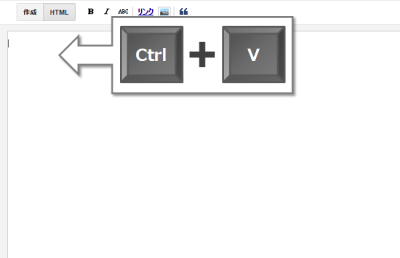
下図のようにタグが貼り付けられます。エディタを通常モードに戻してください。

下図のようにソースコードが現れます。

■完成例■
| using System; |
| using System.Drawing; |
| using System.Windows.Forms; |
| using System.IO; |
| using System.Text; |
| class HTMLBrowser : Form{ |
| private WebBrowser wb; |
| private string text; |
| public HTMLBrowser(string text){ |
| this.StartPosition = FormStartPosition.CenterScreen; |
| this.Width = 600; |
| this.Height = 550; |
| this.Text = “HTML Converter”; |
| this.ShowInTaskbar = false; |
| this.text = text; |
| this.Shown += new EventHandler(this.showForm); |
| this.setComponents(); |
| } |
| public void run(){ |
| string fname = Path.GetDirectoryName(System.Reflection.Assembly.GetExecutingAssembly().Location); |
| fname = fname + “\\index.html”; |
| string savetext = “<!DOCTYPE html><html><body>” + text + “</body></html>”; |
| Encoding sjisEnc = Encoding.GetEncoding(“UTF-8”); |
| StreamWriter file = new StreamWriter(fname, false, sjisEnc); |
| file.Write(savetext); |
| file.Close(); |
| } |
| public void showForm(object sender, EventArgs e){ |
| wb.Refresh(); |
| } |
| private void copyBtn_Click(object sender, EventArgs e){ |
| Clipboard.SetText(text); |
| } |
| private void closeBtn_Click(object sender, EventArgs e){ |
| this.Close(); |
| } |
| private void setComponents(){ |
| Panel mainPane = new Panel(){ |
| Padding = new Padding(5), |
| Dock = DockStyle.Fill, |
| Parent=this, |
| }; |
| Panel btnPane = new Panel(){ |
| Dock = DockStyle.Bottom, |
| Size = new Size(80, 60), |
| Parent=this, |
| }; |
| wb = new WebBrowser(){ |
| Dock = DockStyle.Fill, |
| Name = “webBrowser1”, |
| //BorderStyle = BorderStyle.FixedSingle, |
| Parent=mainPane, |
| }; |
| string fname = Path.GetDirectoryName(System.Reflection.Assembly.GetExecutingAssembly().Location); |
| fname = fname + “\\index.html”; |
| wb.Navigate(fname); |
| Button copyBtn = new Button(){ |
| Text = “To Clipboad”, |
| Size = new Size(130, 30), |
| Location = new Point(300, 10), |
| Parent=btnPane, |
| }; |
| copyBtn.Click += new EventHandler(this.copyBtn_Click); |
| Button closeBtn = new Button(){ |
| Text = “Close”, |
| Size = new Size(130, 30), |
| Location = new Point(440, 10), |
| Parent=btnPane, |
| }; |
| closeBtn.Click += new EventHandler(this.closeBtn_Click); |
| } |
| } |
スポンサーリンク